
Add a PayNow button to Outlook signatures - ePayPolicy
This ePayPolicy Help Center article provides step-by-step instructions for saving a PayNow button image from their client toolkit and adding it to an Outlook email signature by inserting and resizing the image within the signature editor, linking it to the user's ePayPolicy payment page.
ePayPolicy Help Center
This article will guide you through the process of adding a PayNow button to your Outlook signature with a link to your ePayPolicy payment page.
Save Your PayNow Button or Banner
1. Start by selecting the PayNow button or banner you want to add to your signature from our client toolkit.
2. Right click on the image.
3. Select "Save Image As…" from the drop down menu.
4. Name the saved image something you can easily find later such as PayNow.
5. Verify the folder where the image will be saved and click Save.
Tip
We recommend saving to your “Downloads” folder.
Add a PayNow Button or Banner to Outlook Signature
1. Start by opening a new email message in Outlook.
2. Select the Message menu and click Signature.
Tip
Depending on the size of your outlook window and whether you're composing a new email message or a reply or forward, the Message menu and the Signature button might be in two different locations.


3. Select Signatures from the drop down menu.
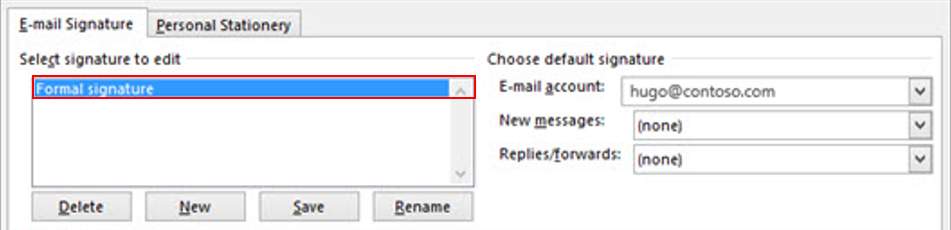
4. In the “Select signature to edit” box, choose the signature to which you want to add your PayNow Button or Badge.
5. Click the Image icon.
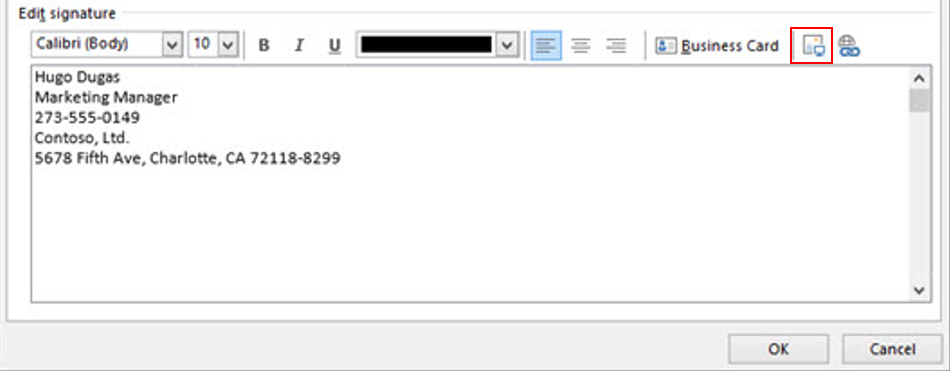
6. Locate and choose your saved image file.
Tip
Remember, earlier we recommended saving to your "Downloads" folder.
7. Resize your image by following the steps below:
- Step 1: Right-click the image.
- Step 2: Choose Picture.
- Step 3: Select the Size tab and use the options to resize your image. To keep the image proportions, make sure to keep the Lock aspect ratio checkbox checked.
Embedding a Link to Your Payment Page
1. Click the PayNow Button you just added to select it.
2. Click the Add Link button.
3. In the Insert Hyperlink popup, paste your ePayPolicy payment page URL in the address field. If you do not know your dedicated payment page URL this article will help.
4. When you're done click OK, then click OK again to save the changes to your signature.
How can we improve this article?
Inaccurate - doesn't match what I see in the product
Hard to Understand - unclear or translation is wrong
Missing info - relevant but not comprehensive
Irrelevant - doesn’t match the title and / or my expectations
Minor errors - formatting issues, typos, and / or broken links
Other
Share additional info and suggestions
Notify me about changes
Cancel
Contact Us
If you still have questions or prefer to get help directly from an agent, our team can be reached during normal business hours, Monday through Friday 8AM-5PM CST, via the "Let's Chat" feature on the bottom right corner of our website.
If you would prefer to speak to someone via a phone call, during normal business hours, contact our Customer Support team at 844-372-9300.